

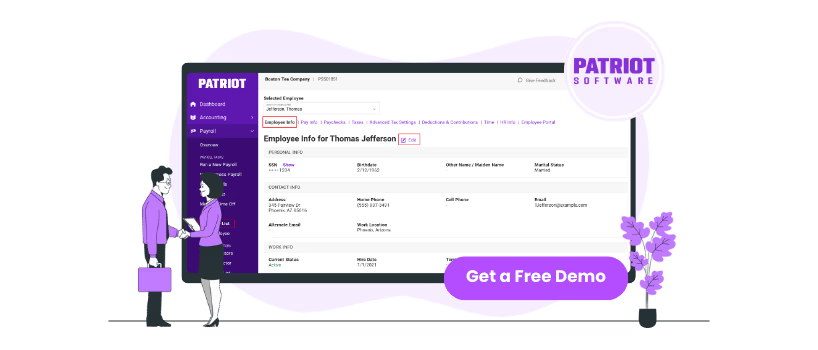
Renowned for its payroll processing capabilities, Patriot software offers an intuitive and efficient solution for small and medium-sized businesses. The platform simplifies payroll management, ensuring accurate calculations, timely tax filings, and compliance with relevant authorities.
Most importantly, Patriot speeds up the process of payroll processing, allowing businesses to save time and focus on other critical tasks. This article explains the step-by-step process of processing payroll using Patriot software.
Patriot Payroll software features a simple, three-step payroll processing system that makes managing payroll quick and efficient. These include:
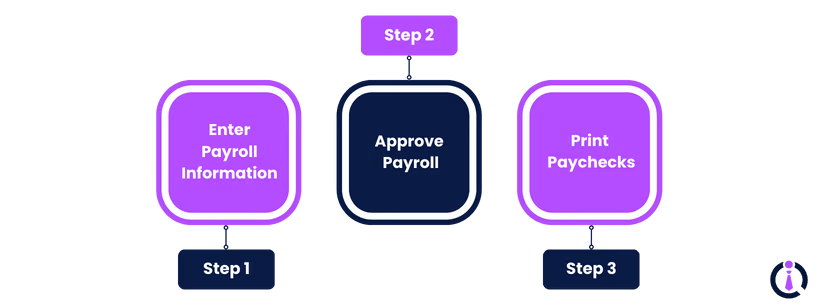
- Navigate to the 'Payroll' menu and select 'Run A New Payroll.' This opens the 'Payroll Entry' screen, where you will find details about all active employees
- Input the pay period start and end dates, pay date, and, if applicable, select the pay frequency. Remember that only employees associated with the chosen pay frequency will appear
Note: Once you run your first payroll, the dates are filled automatically on the second cycle. You can turn this feature off by clicking on 'Show Advanced Options' and setting 'Pre-Fill Payroll Dates' to ‘No’
- Next, input employee hours and earnings. You can do this for both hourly and salaried employees
For Hourly Employees
For Salaried Employees
- These employees are automatically set to receive their regular pay. To adjust, uncheck the 'Pay?' box
- If paying contractors, check the 'Pay 1099 Contractors' box to include them in this payroll run
After entering all necessary information, click ‘Next Step’ to continue.
- If you want to print checks, you can print them now or print later from the print payrolls page on the left menu
- To download checks, enter the starting check number and click the 'Download' button, you will have checks available in PDF format, ready to be printed
Note: Generally, checks are printed on the pre-printed check stock. You can also print pay stubs on plain paper for employees receiving direct deposits or handwritten checks
Completing these steps ensures your payroll is processed accurately and efficiently. You can book a free Patriot payroll demo to get a closer look at its functionalities.